Installation
Table of Contents
- 1. Prerequisites
- 2. Install the Extension
- 3. Configure Zoho CRM (fields, module, org variables)
- 4. Setup & OAuth authorization
- 5. Sync templates
- 6. Verify end-to-end
1) Prerequisites
- A public HTTPS backend URL (for Zoho OAuth callback + webhooks).
- Zoho OAuth credentials (Client ID/Secret) with redirect URL:
https://<your-backend-domain>/auth/callback. - Pingbix API key + WhatsApp sender/WABA number. Optional: SMS sender ID; RCS bot ID/route settings depending on provider.
2) Install the Extension
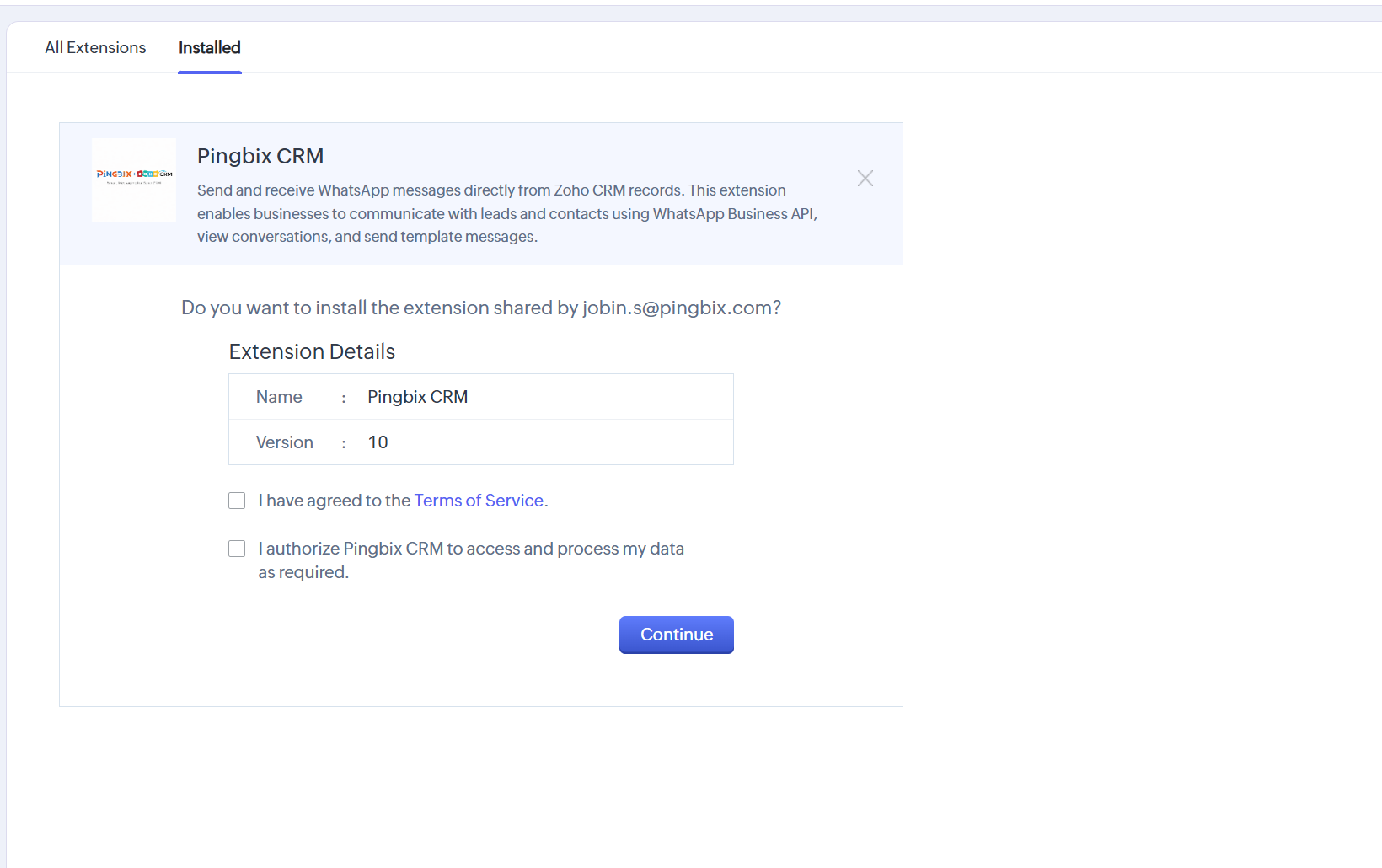
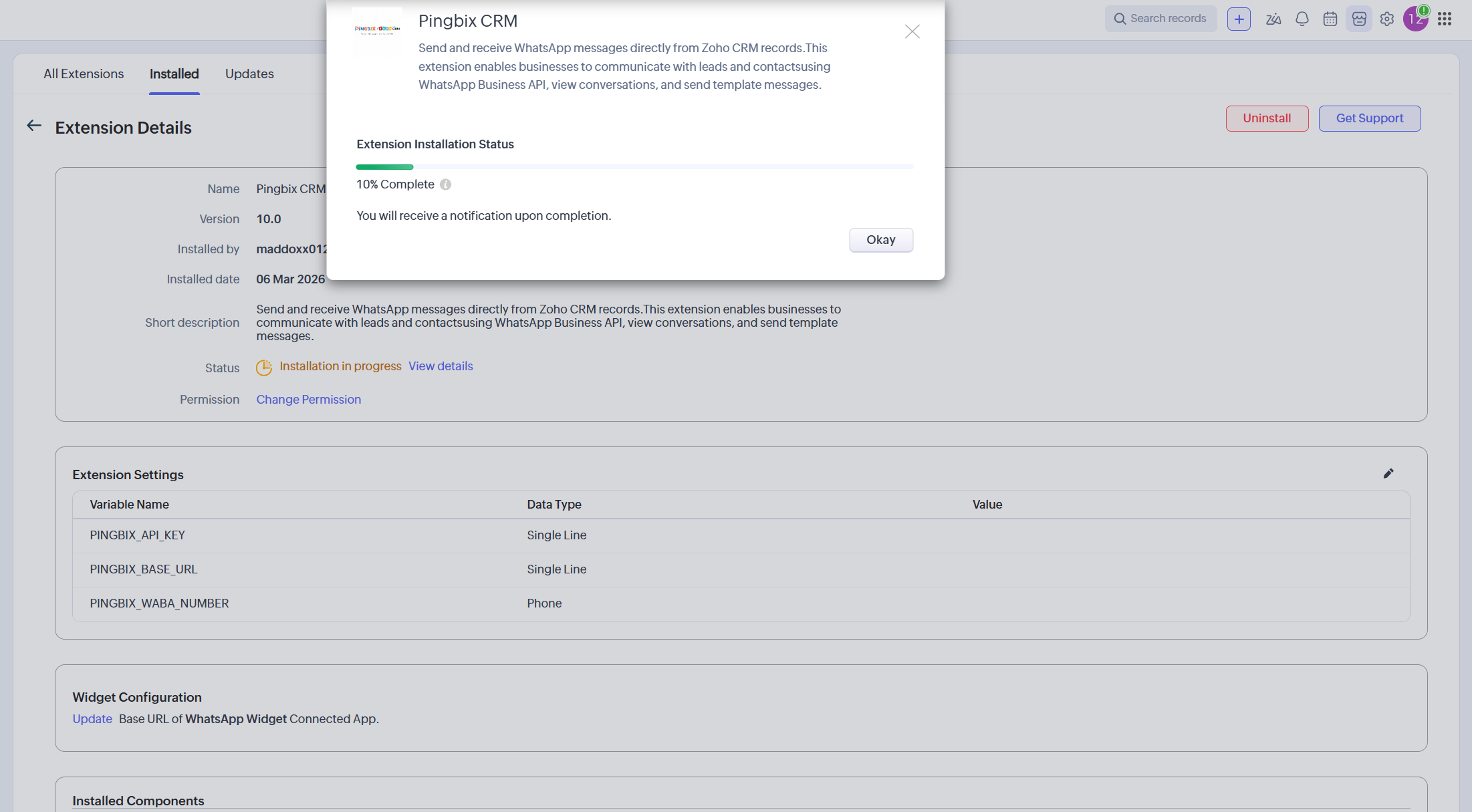
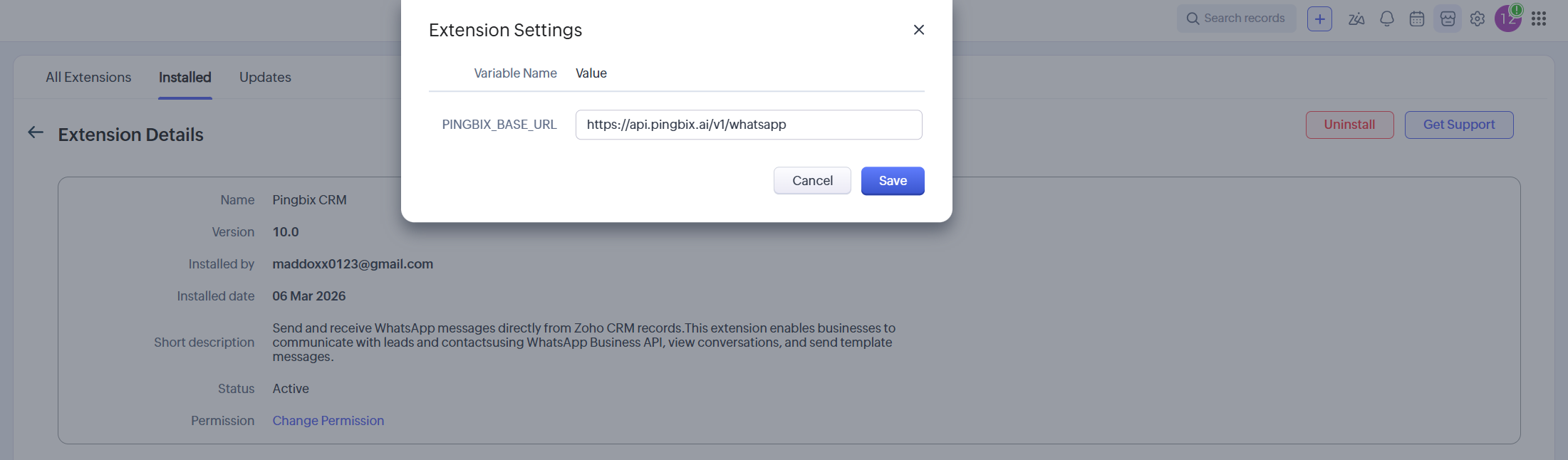
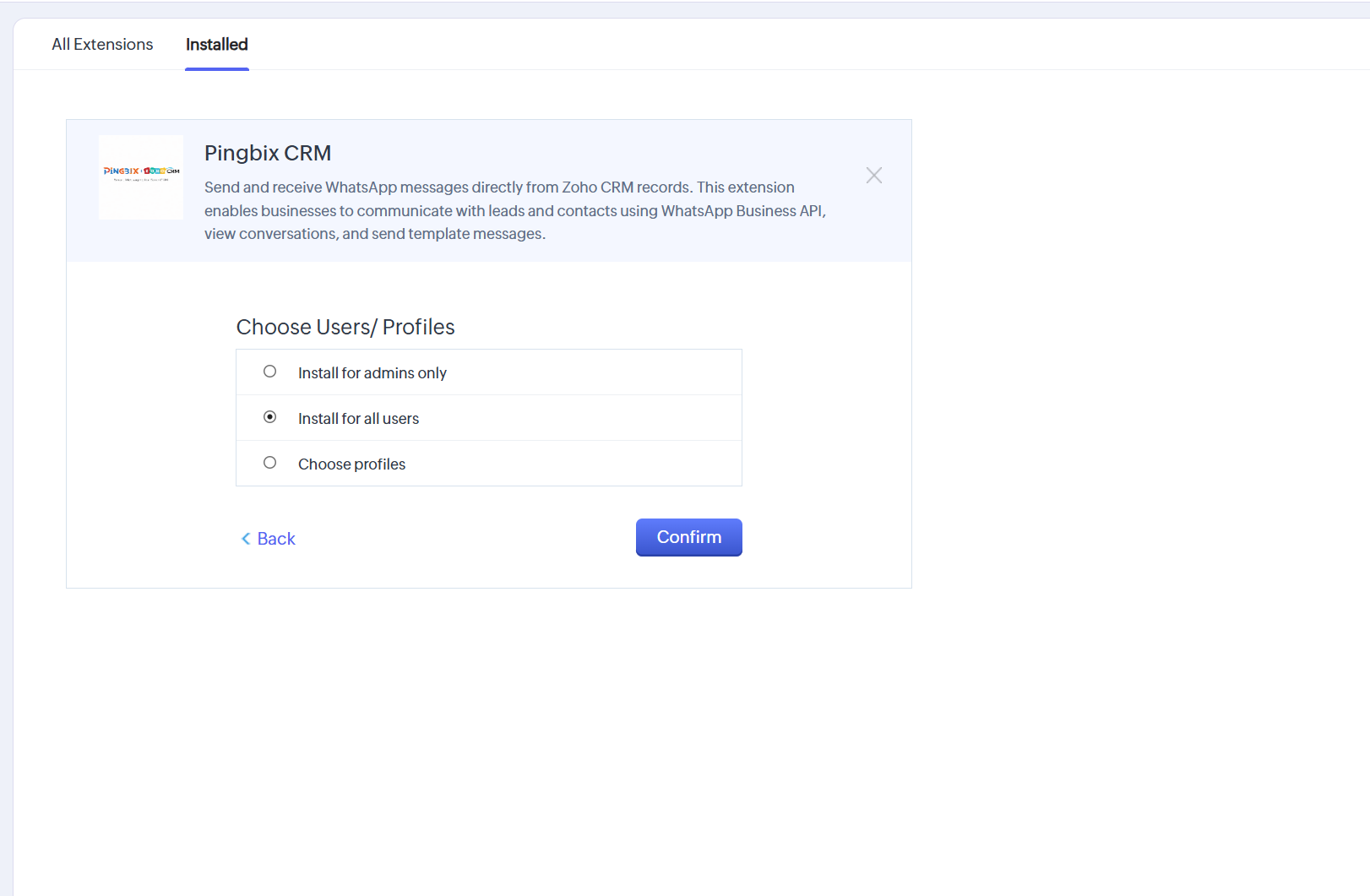
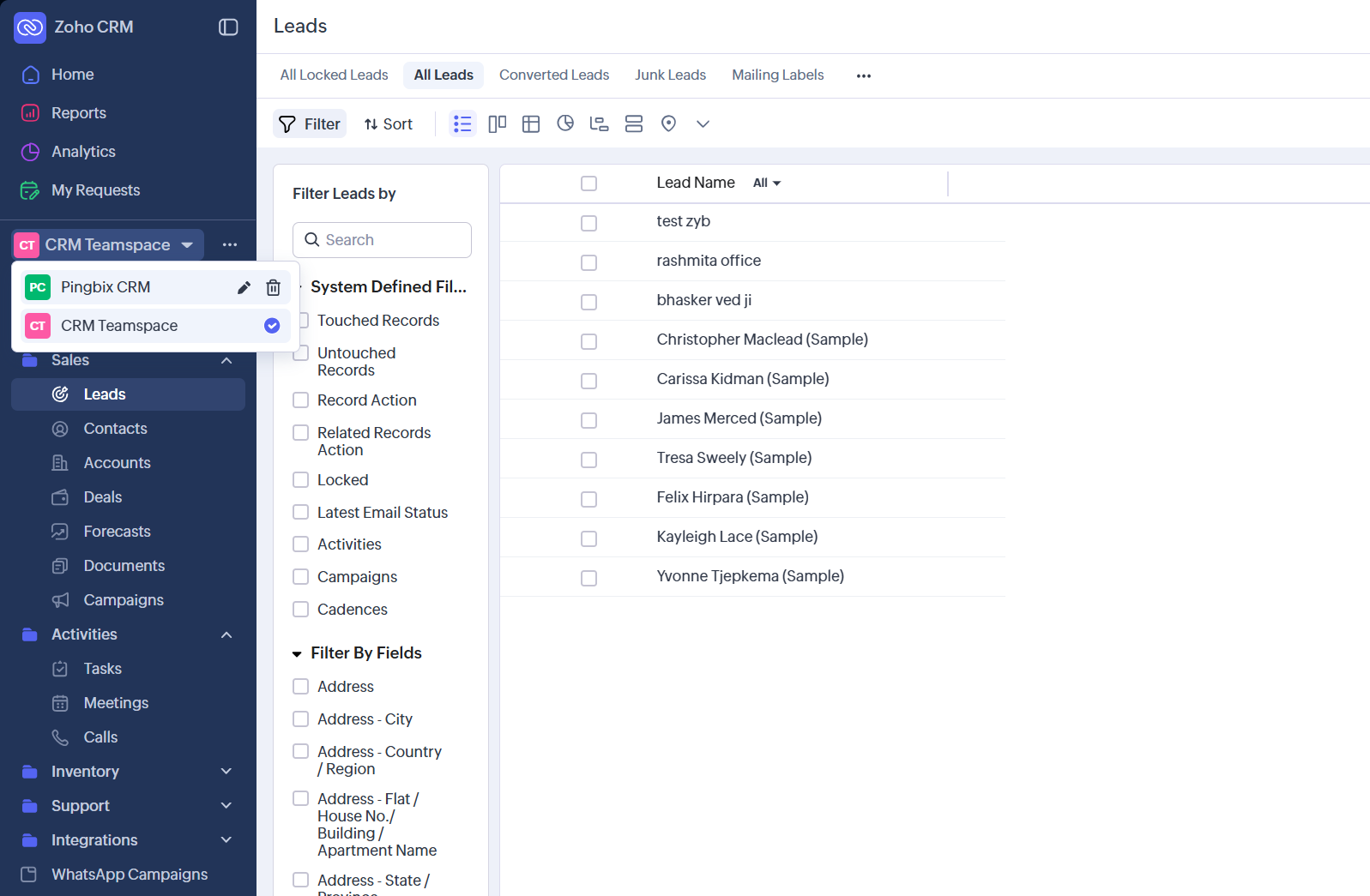
Install the extension from your Zoho Developer setup or marketplace workflow, then confirm the Base URL points to your deployed backend (HTTPS).
3) Configure Zoho CRM (required fields + modules)
Create the required custom fields in both Leads and Contacts. The backend uses these fields for opt-in enforcement and updates.
- WhatsApp: WhatsApp Number, WhatsApp Opt-In, Last WhatsApp Message Time (or equivalent).
- RCS: RCS Opt-In, and status fields (for example
pingbixcrm__RCS_Status) if you want delivery or read tracking. - SMS: SMS Opt-In (recommended for compliance).
Create the template storage module used for WhatsApp template persistence:
- Module label: Pingbix Templates
- Fields: Template Name, Language, Category, Params Count, Header Type, Body Text, Status, etc.
4) Setup & Zoho OAuth authorization
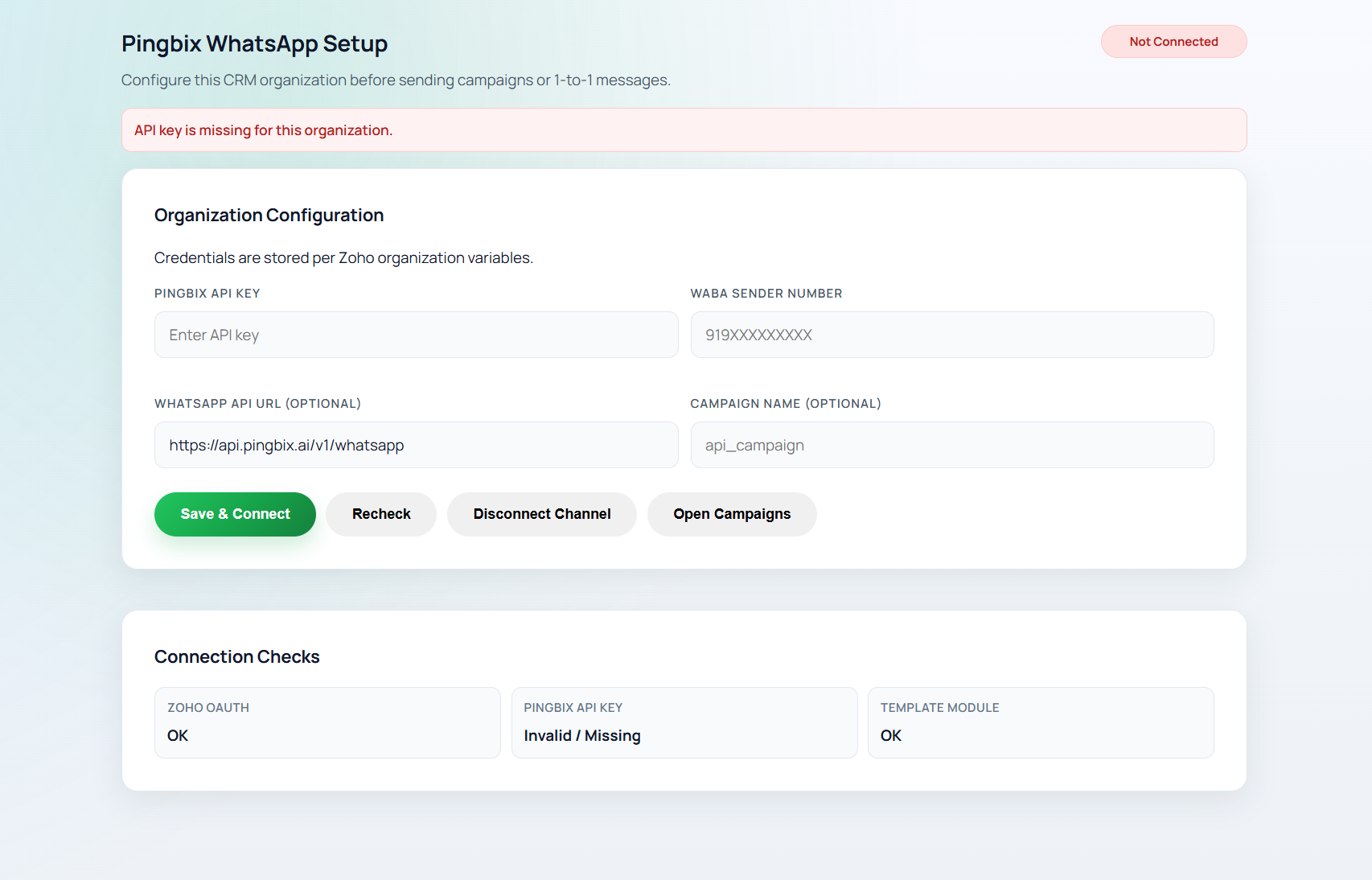
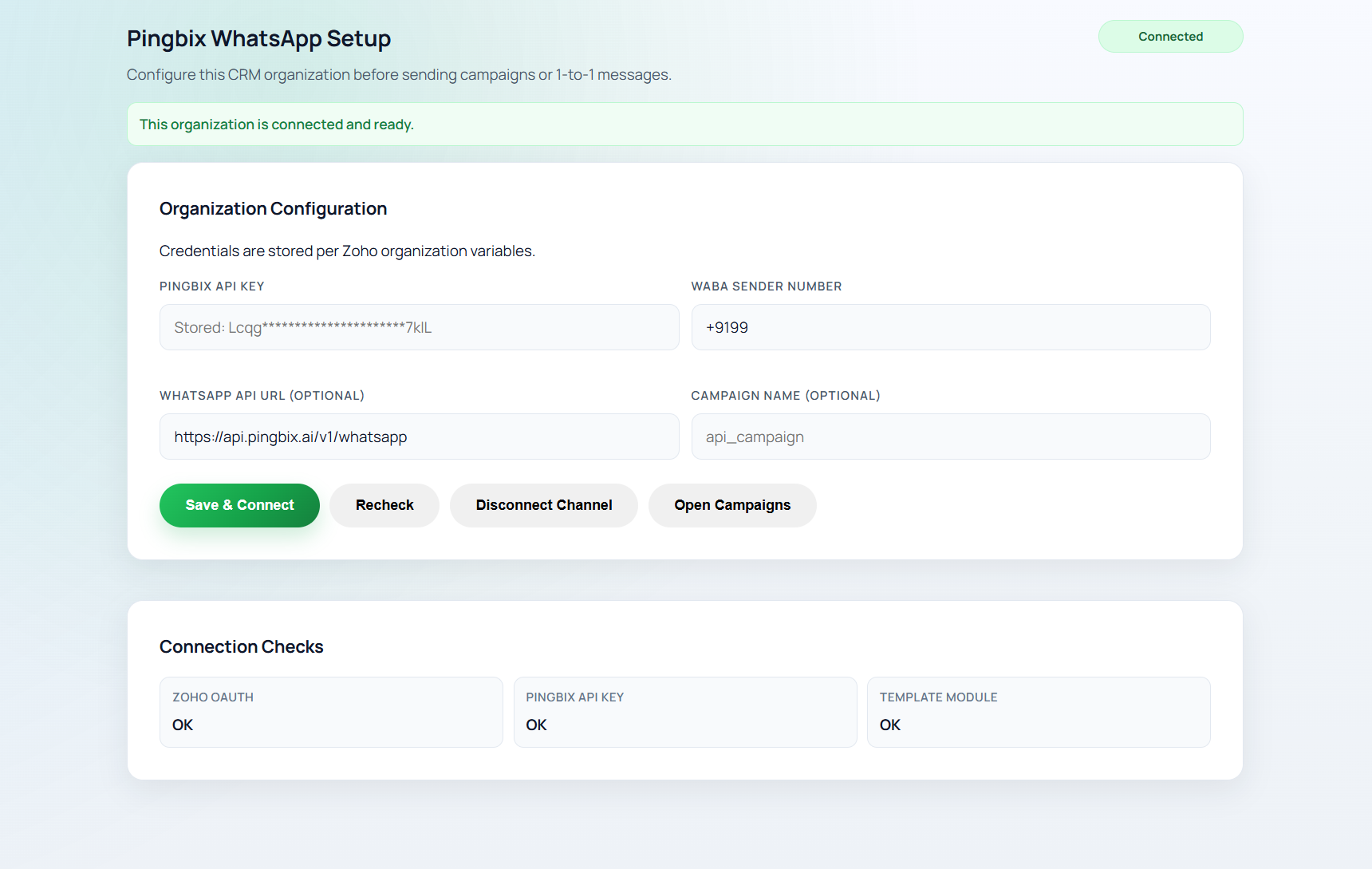
Open the Pingbix Setup tab and configure Pingbix for your Zoho organization.
Next, authorize Zoho OAuth:
- From Setup, click the connect or authorize action. A popup opens.
- Sign in to Zoho and approve permissions.
- Return to Setup and confirm the status shows connected or ready.
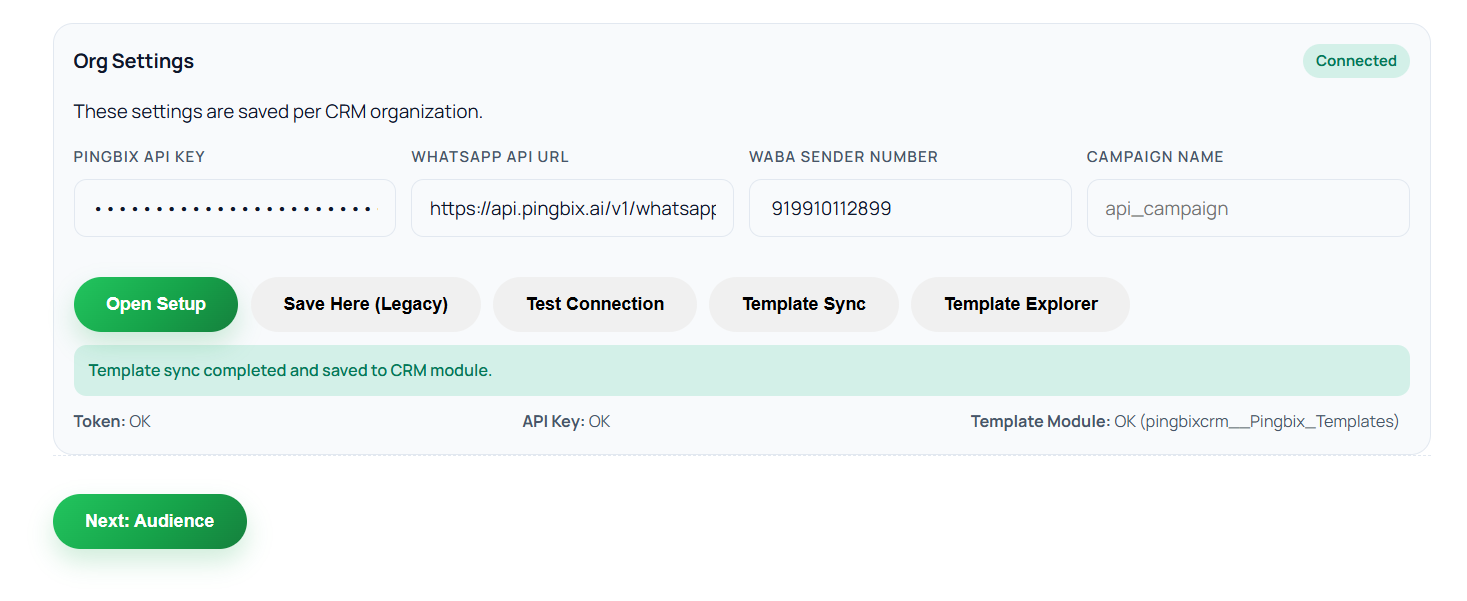
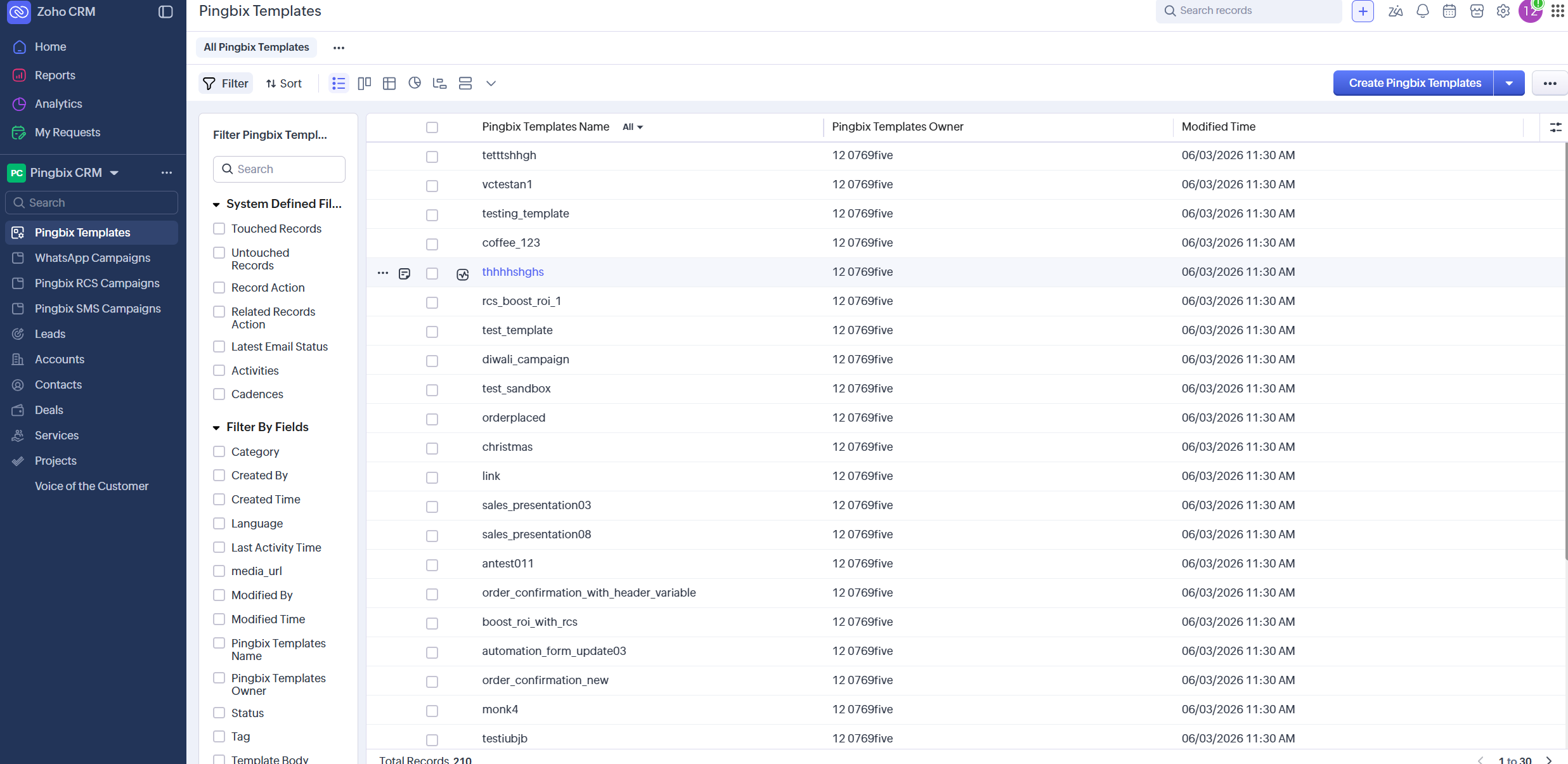
5) Sync WhatsApp templates
Sync templates from Pingbix and persist them into the Zoho "Pingbix Templates" module for this org.
6) Verify end-to-end
- Open a Lead or Contact with a valid phone number and opt-in enabled.
- Send a WhatsApp test message using the 1-to-1 widget.
- Run a WhatsApp campaign using a template and mapping.
- Open SMS campaigns and send a test, or run a campaign if configured.
- Open RCS campaigns or send individual RCS messages if configured.
Continue with Admin Guide (env vars, webhooks, production hardening).
Admin Guide
Table of Contents
- 1. Required Zoho CRM setup
- 2. Permissions and roles
- 3. Setup tab: connect Pingbix + authorize Zoho
- 4. Templates (WhatsApp/SMS/RCS)
- 5. Optional webhooks
- 6. Compliance (opt-in)
- 7. Security and privacy
- 8. Admin troubleshooting
1) Required Zoho CRM setup
Before users can send messages or run campaigns, configure Zoho CRM with the required fields and modules.
- Create channel opt-in fields in Leads and Contacts (WhatsApp/SMS/RCS).
- Create the Pingbix Templates custom module (used for WhatsApp templates).
- Confirm phone fields are available and consistently populated (avoid duplicates like Phone vs Mobile vs WhatsApp Number).
2) Permissions and roles
- CRM Admin: required for initial setup (fields, modules, buttons/widgets, install permissions).
- Campaign operators: users who will run campaigns should have access to Leads/Contacts, views, and the Pingbix web tabs.
- Template managers: users allowed to sync templates and maintain SMS/RCS local catalogs, if your org allows this.
3) Setup tab: connect Pingbix + authorize Zoho
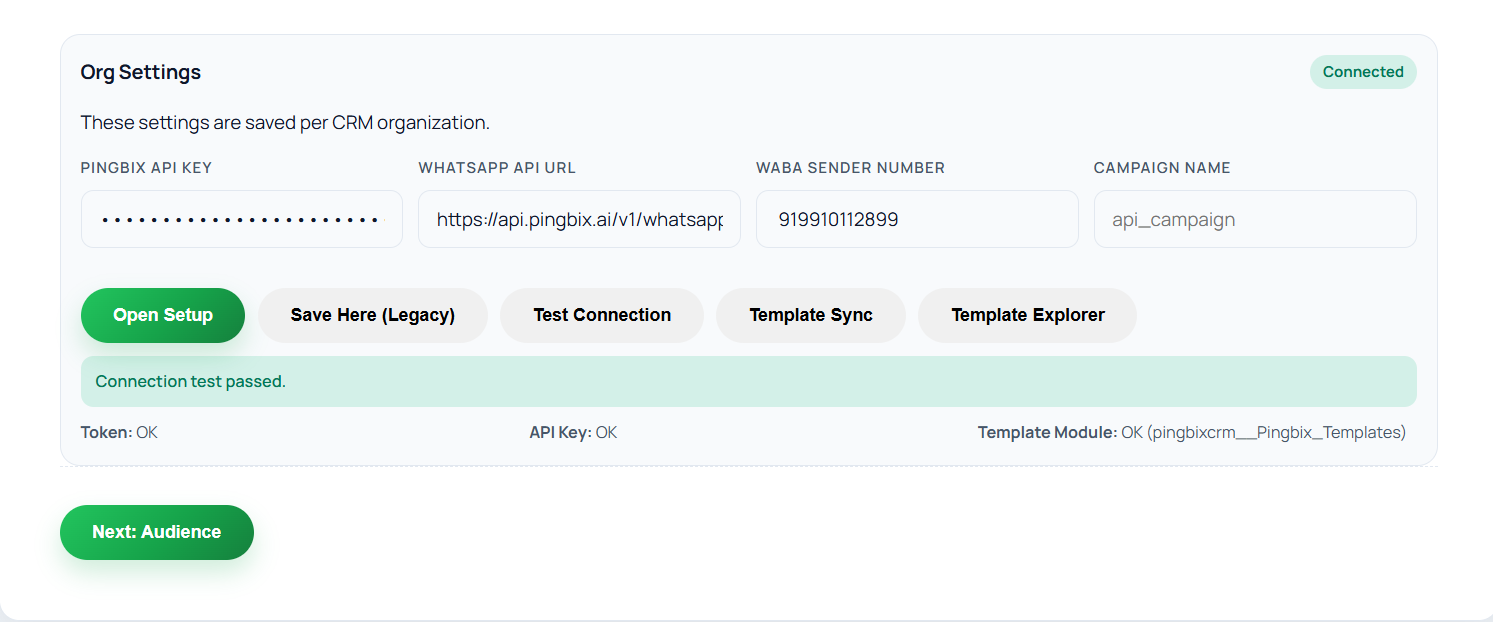
Use the Pingbix Setup tab to connect your Zoho organization.
- Enter your Pingbix API key and WhatsApp sender/WABA number.
- Authorize Zoho permissions. A popup opens, so allow popups.
- After successful connection, users can access campaign pages and 1-to-1 widgets.
4) Templates (WhatsApp/SMS/RCS)
- WhatsApp: run "Template Sync" after install so approved templates are available for campaigns and template sending.
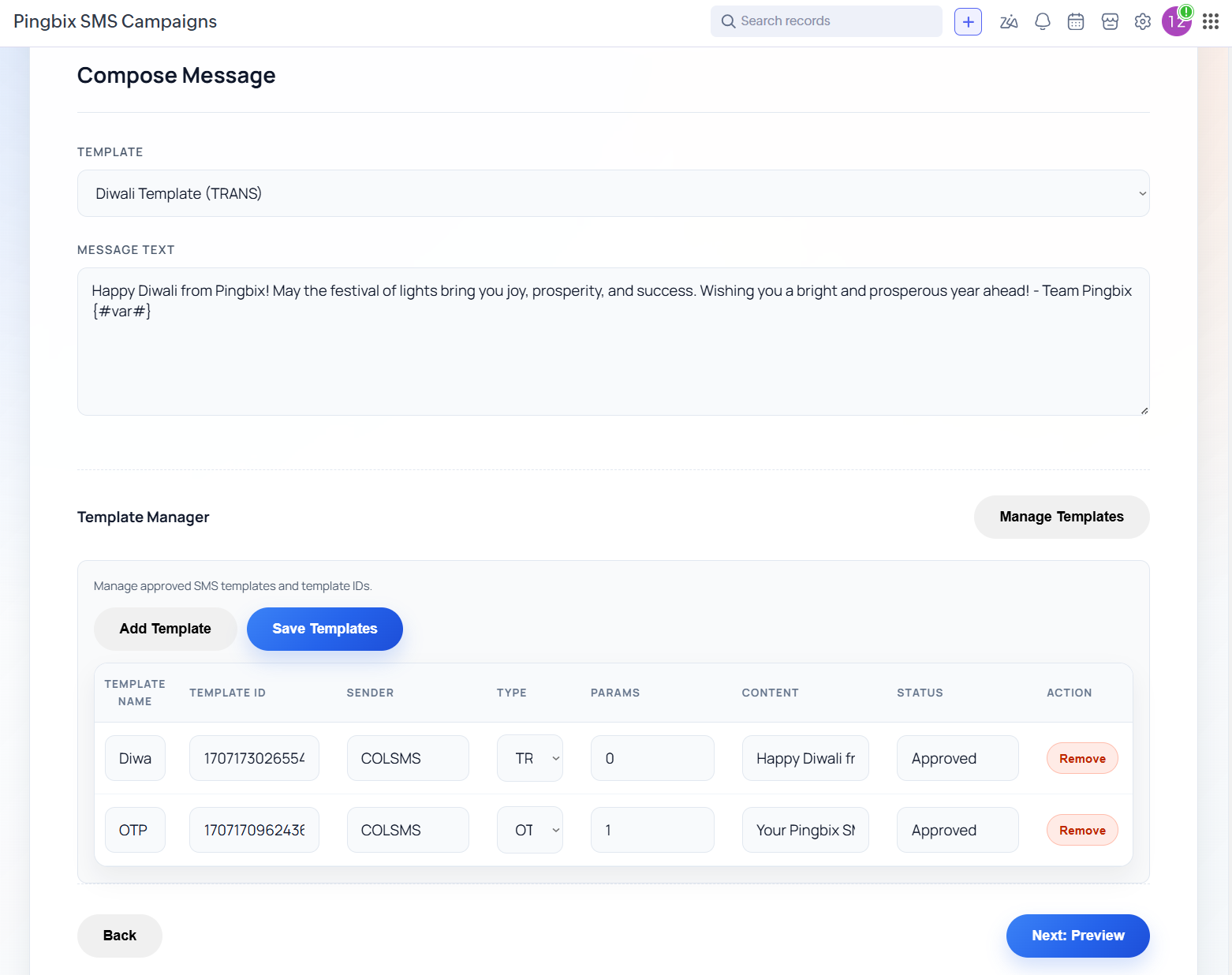
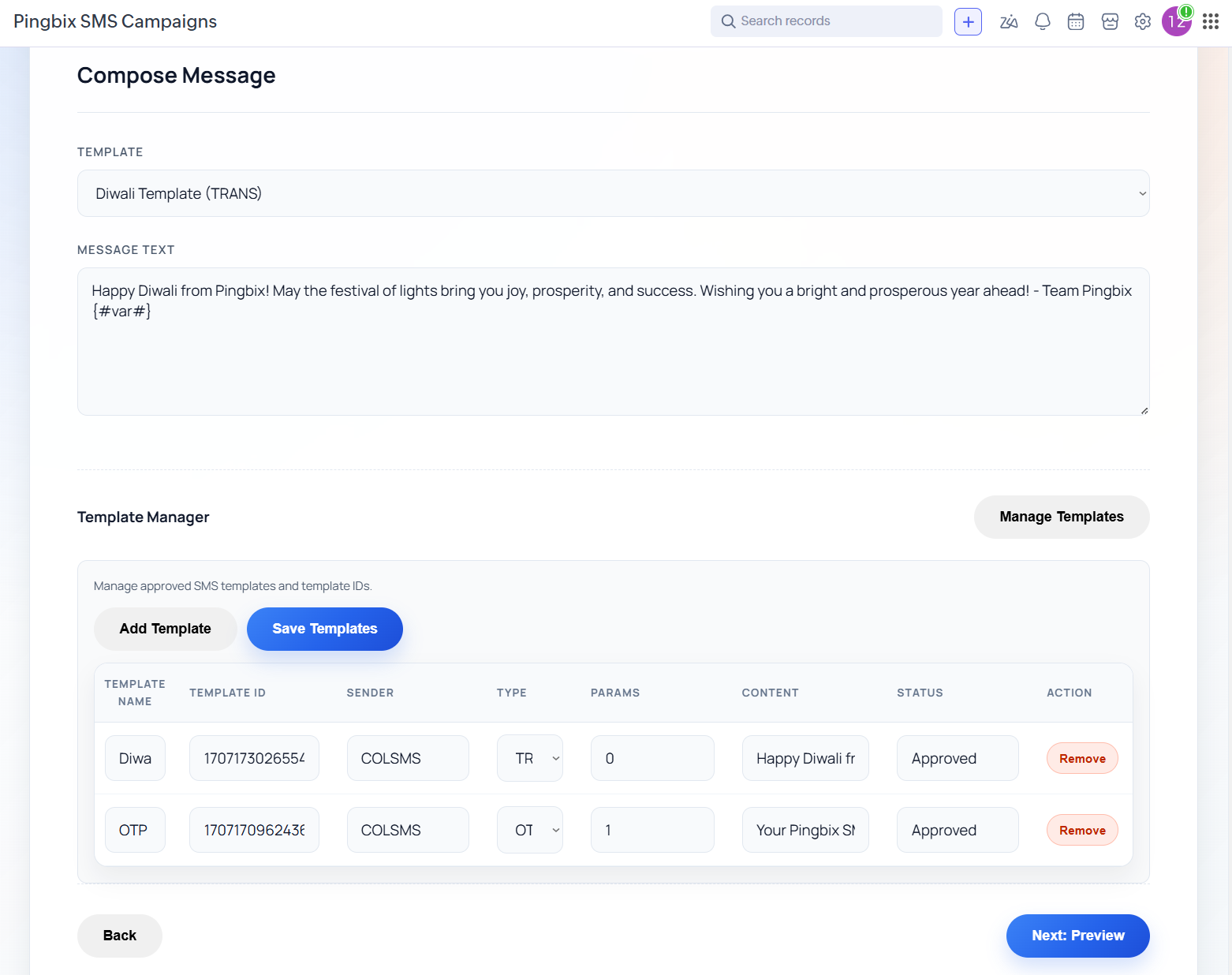
- SMS: templates can be managed from the SMS Campaign page (Template Manager).
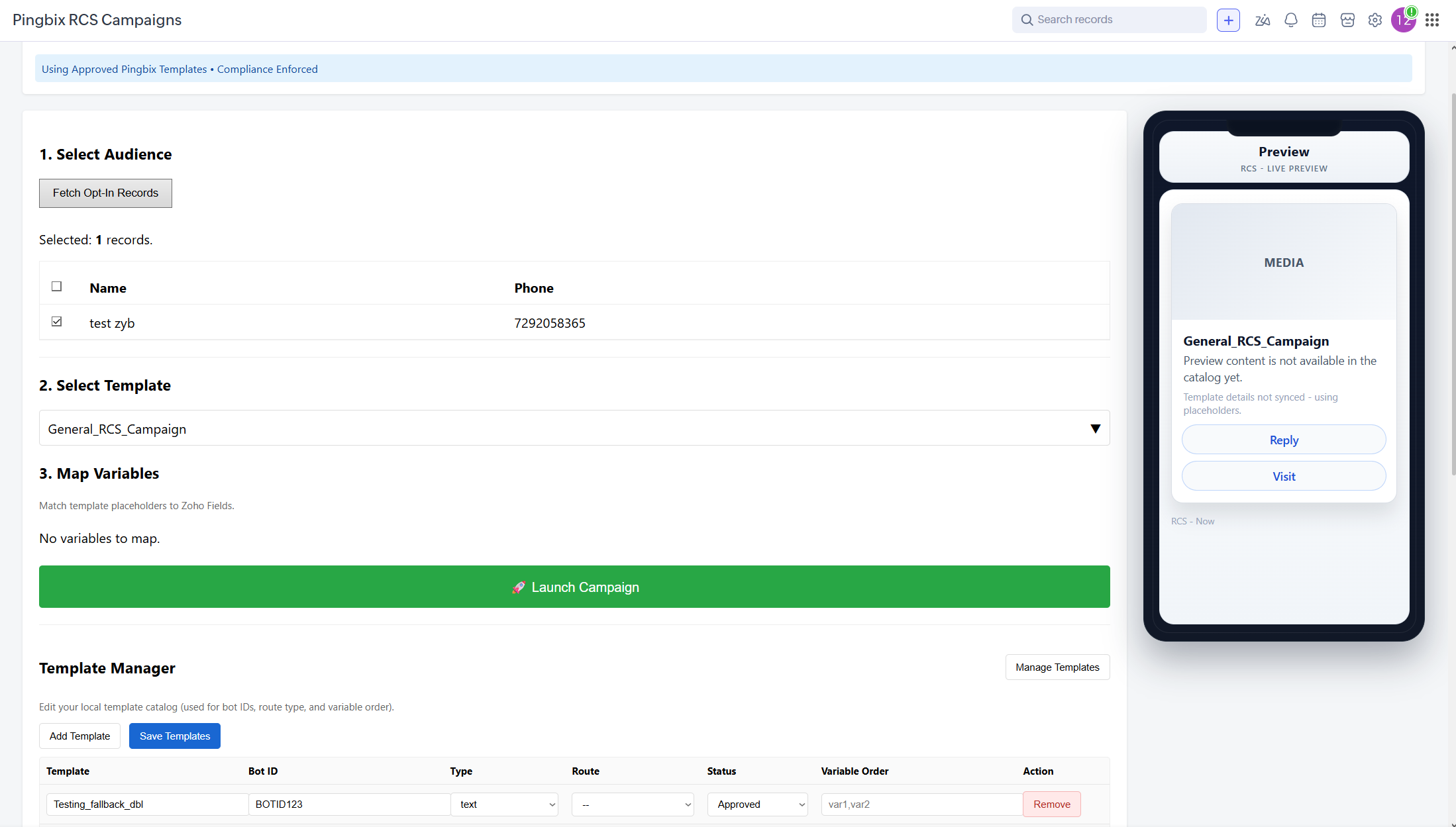
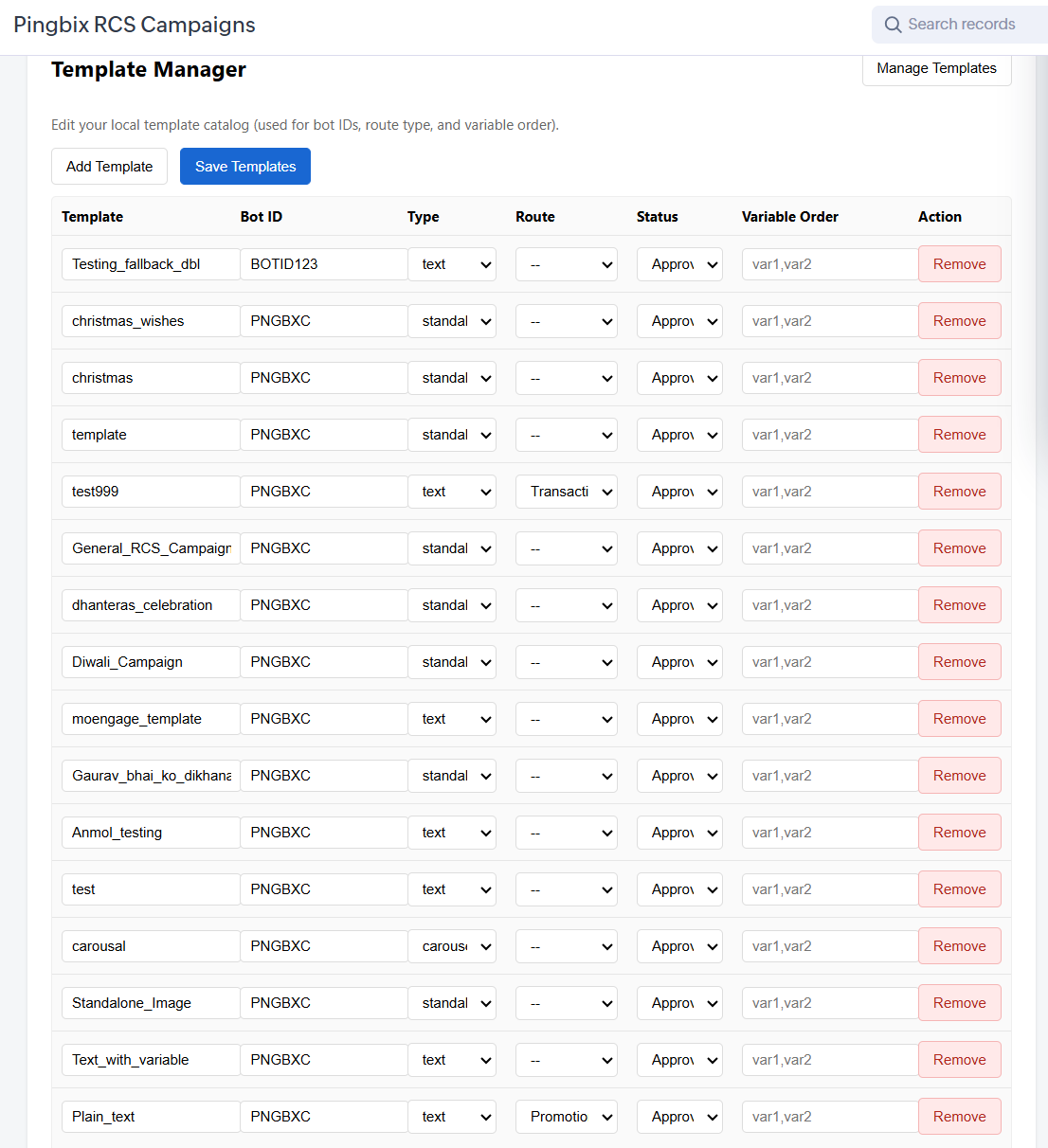
- RCS: templates can be managed from the RCS Campaign page (Template Manager). RCS enforces template-only sending.
5) Optional webhooks
Webhooks are optional but recommended if you want CRM fields to update automatically, for example last inbound WhatsApp time or delivery status.
- WhatsApp (Meta): set webhook URL to
https://<your-backend-domain>/whatsapp/webhook - RCS (provider): set callback URL to
https://<your-backend-domain>/rcs
6) Compliance (opt-in)
The extension enforces opt-in for messaging:
- Recipients without opt-in are skipped in campaigns.
- RCS sending is template-only.
- WhatsApp template sending requires opt-in except some authentication templates.
7) Security and privacy
- Keep API keys private. Do not share screenshots that expose credentials.
- Limit extension access to the minimum set of user profiles required.
- Use a stable backend domain and controlled access managed by your technical team.
8) Admin troubleshooting
- Templates not visible: run Template Sync, then reload the campaigns page.
- Send button disabled: verify the phone field is populated and opt-in is enabled.
- Authorization popup blocked: allow popups for Zoho CRM and retry authorization.
Ready to run campaigns and 1-to-1 messaging?
User Workflows
Table of Contents
- 1. Before you start (opt-in + phone fields)
- 2. WhatsApp 1-to-1
- 3. WhatsApp campaigns
- 4. SMS 1-to-1
- 5. SMS campaigns
- 6. RCS 1-to-1 (templates only)
- 7. RCS campaigns
1) Before you start
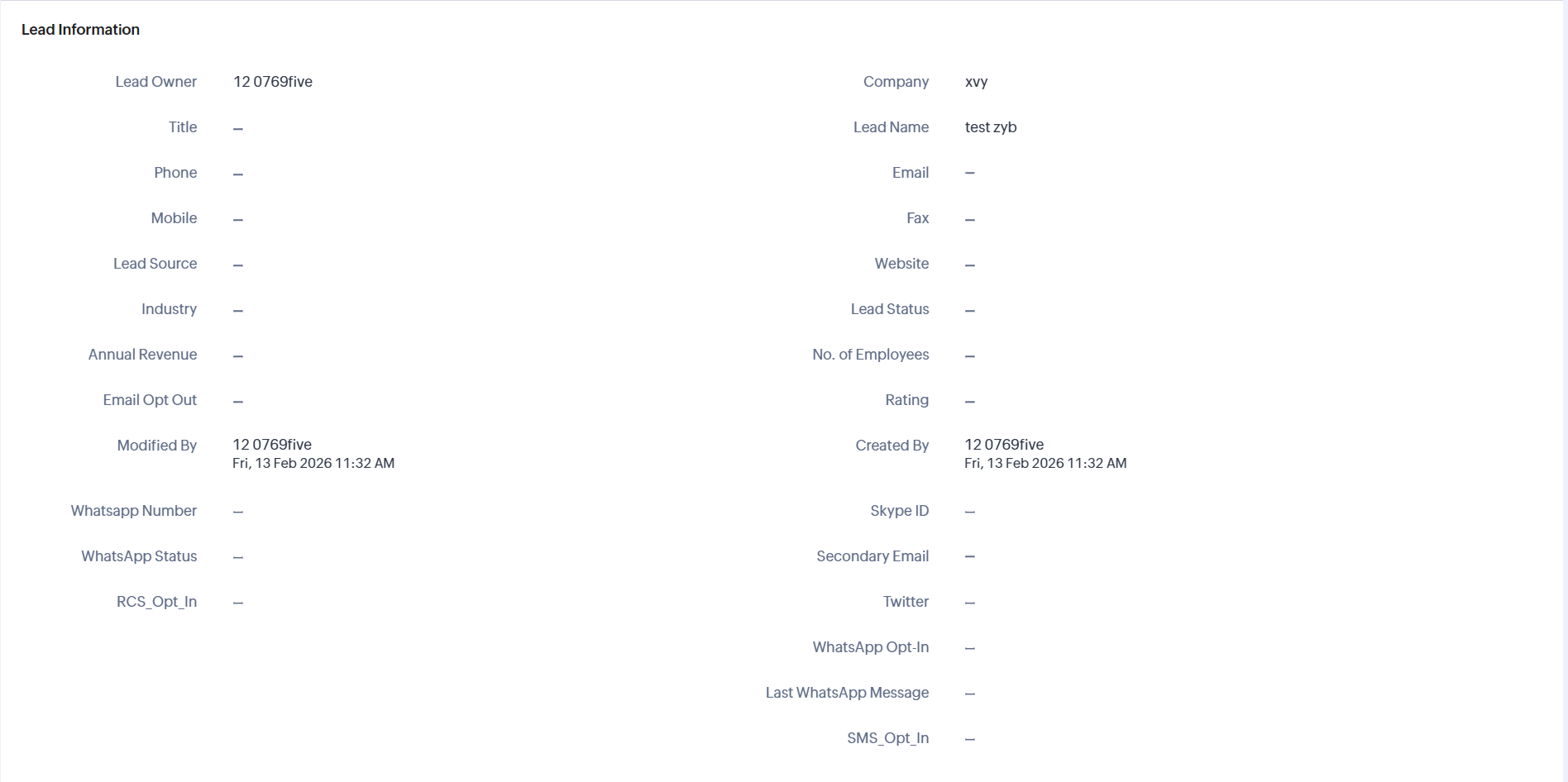
Messaging actions follow compliance rules. Make sure your Leads and Contacts have:
- A valid phone number in the configured phone fields. WhatsApp, SMS, and RCS may use different field candidates.
- Opt-in enabled for the channel. WhatsApp templates require opt-in unless the template category is Authentication.
2) WhatsApp 1-to-1 (Lead/Contact right panel)
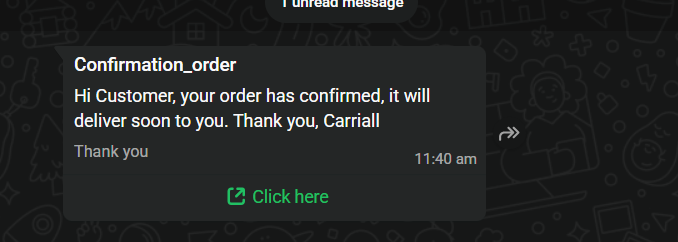
Open a Lead or Contact record and use the WhatsApp widget to send a free-form message or an approved template.
3) WhatsApp campaigns (web tab)
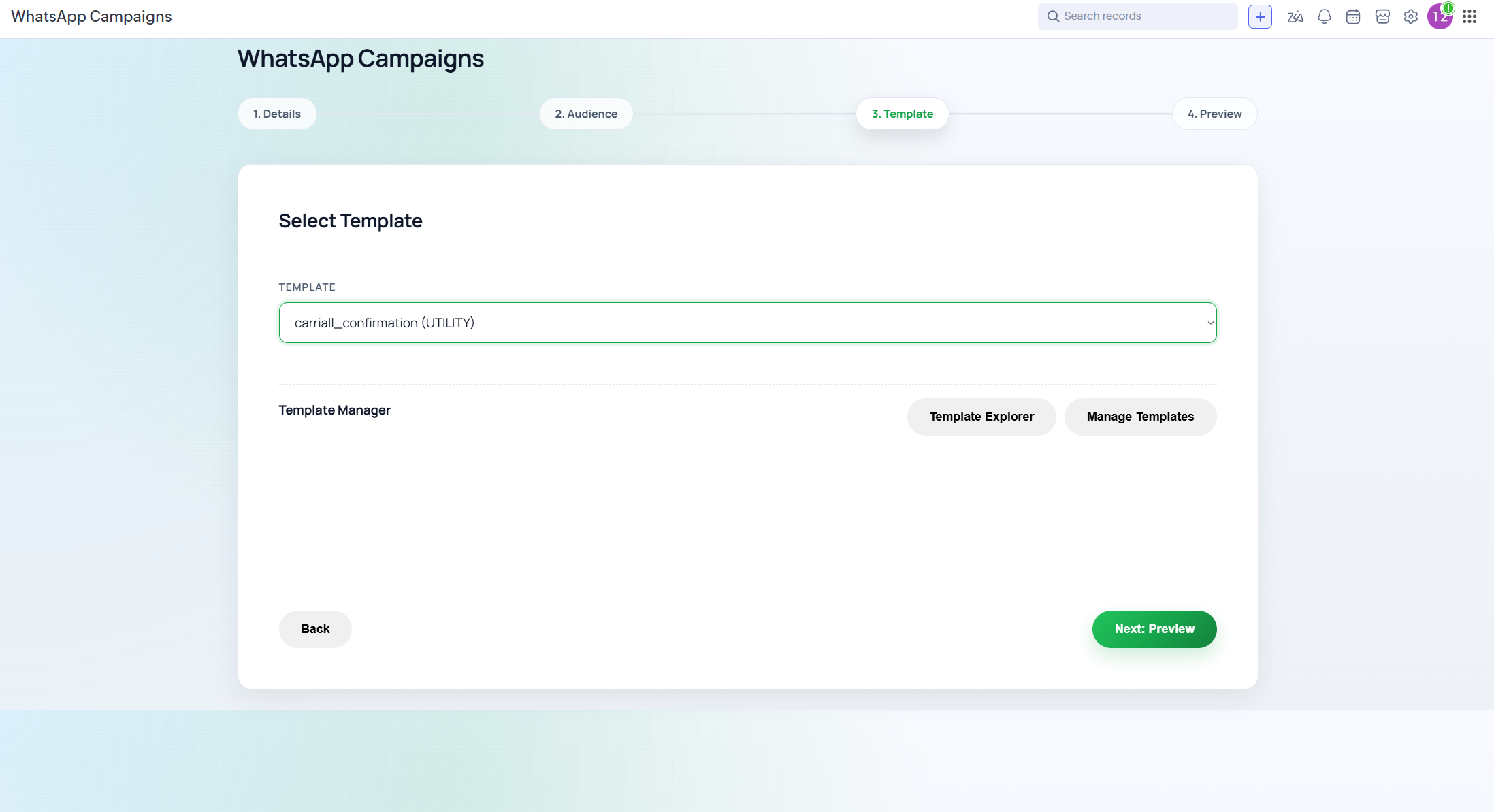
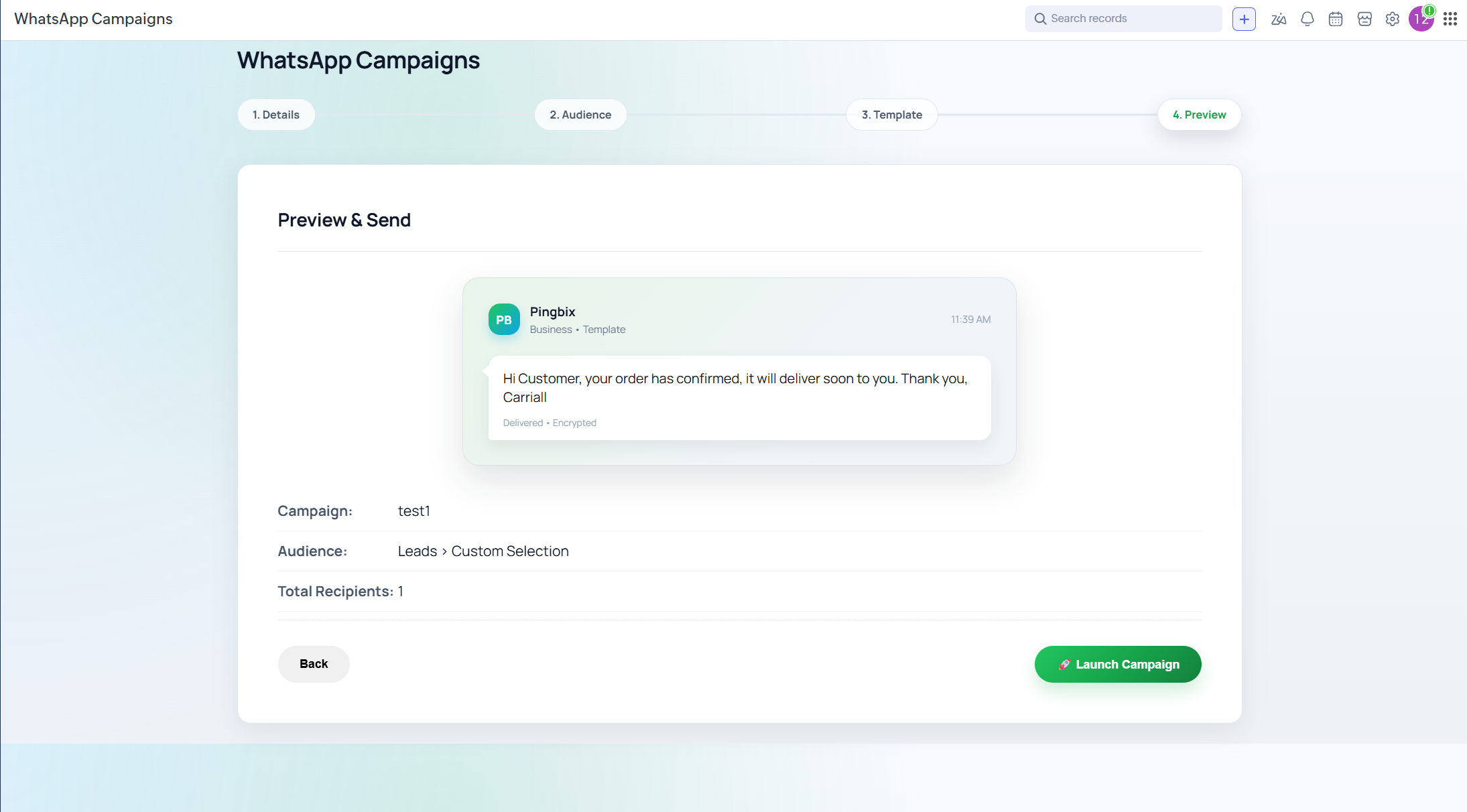
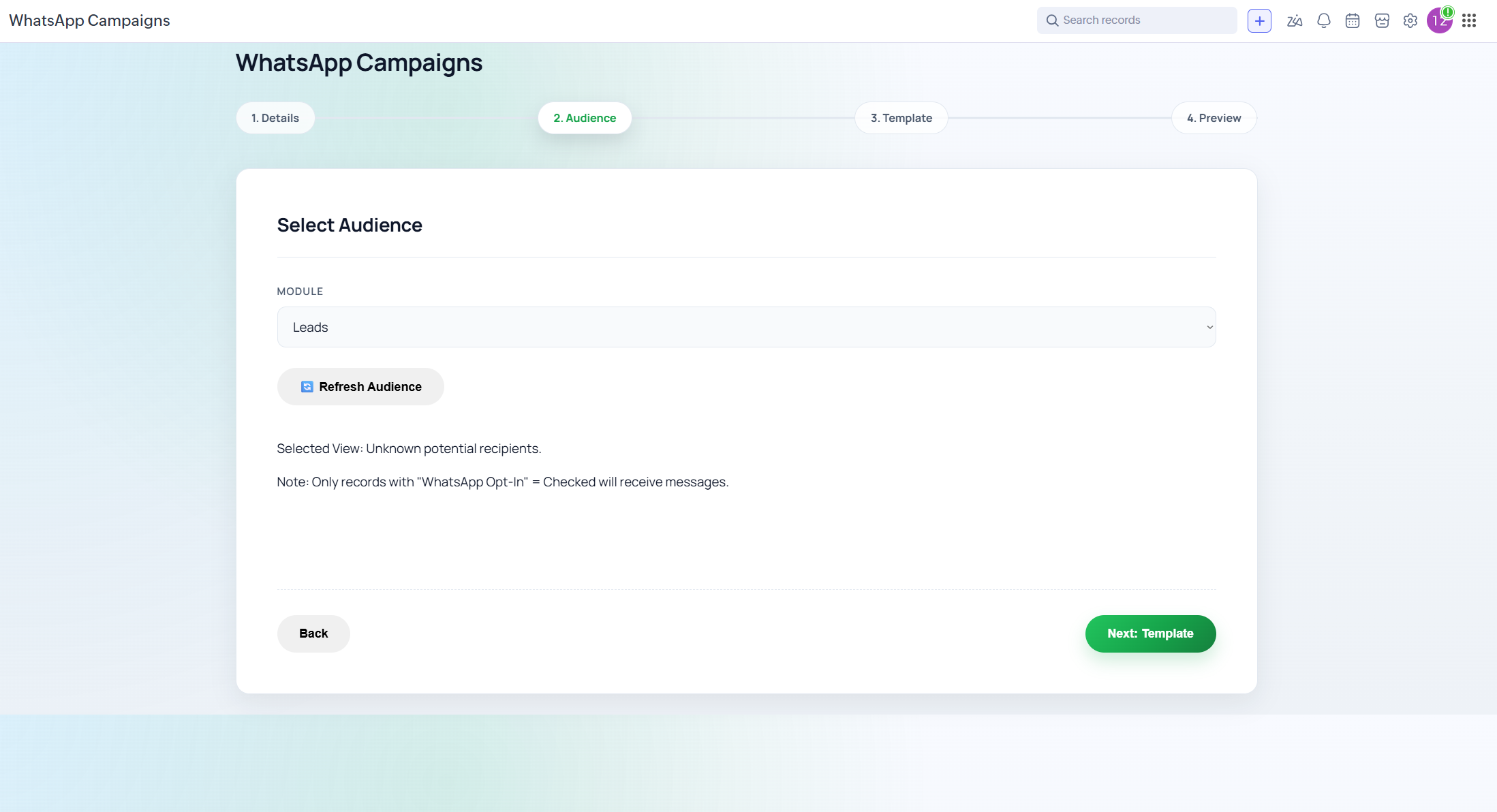
Open Pingbix WhatsApp and follow the wizard to run a template campaign.
- Choose module plus view or COQL, then preview audience.
- Select template and map parameters using Zoho field API names or
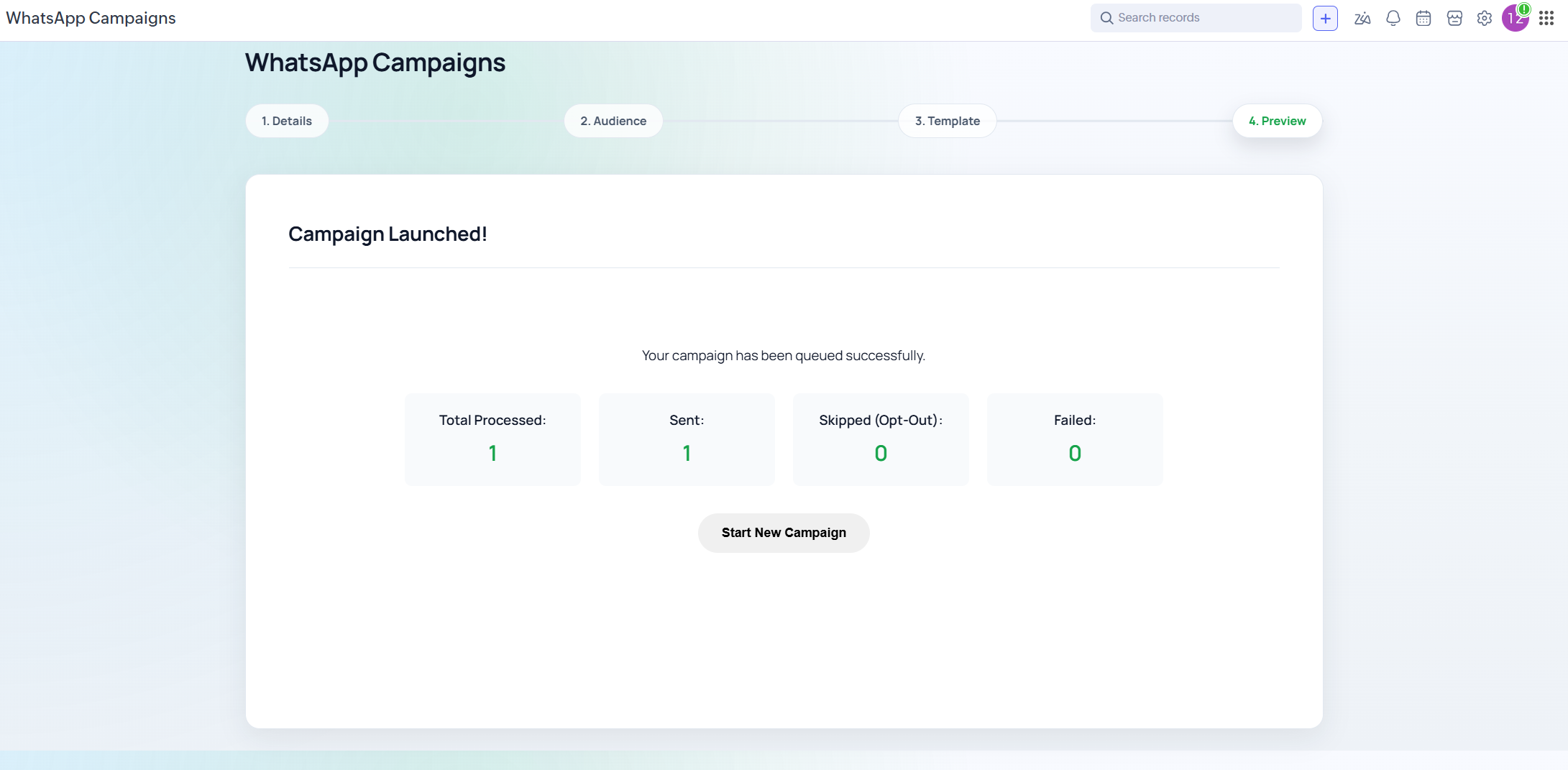
STATIC:<value>. - Preview and launch. Results show Sent, Failed, and Skipped.
4) SMS 1-to-1 (Lead/Contact right panel)
Open the SMS widget from a Lead or Contact record. You can send custom text or select a template. Template IDs are managed in the SMS template catalog.
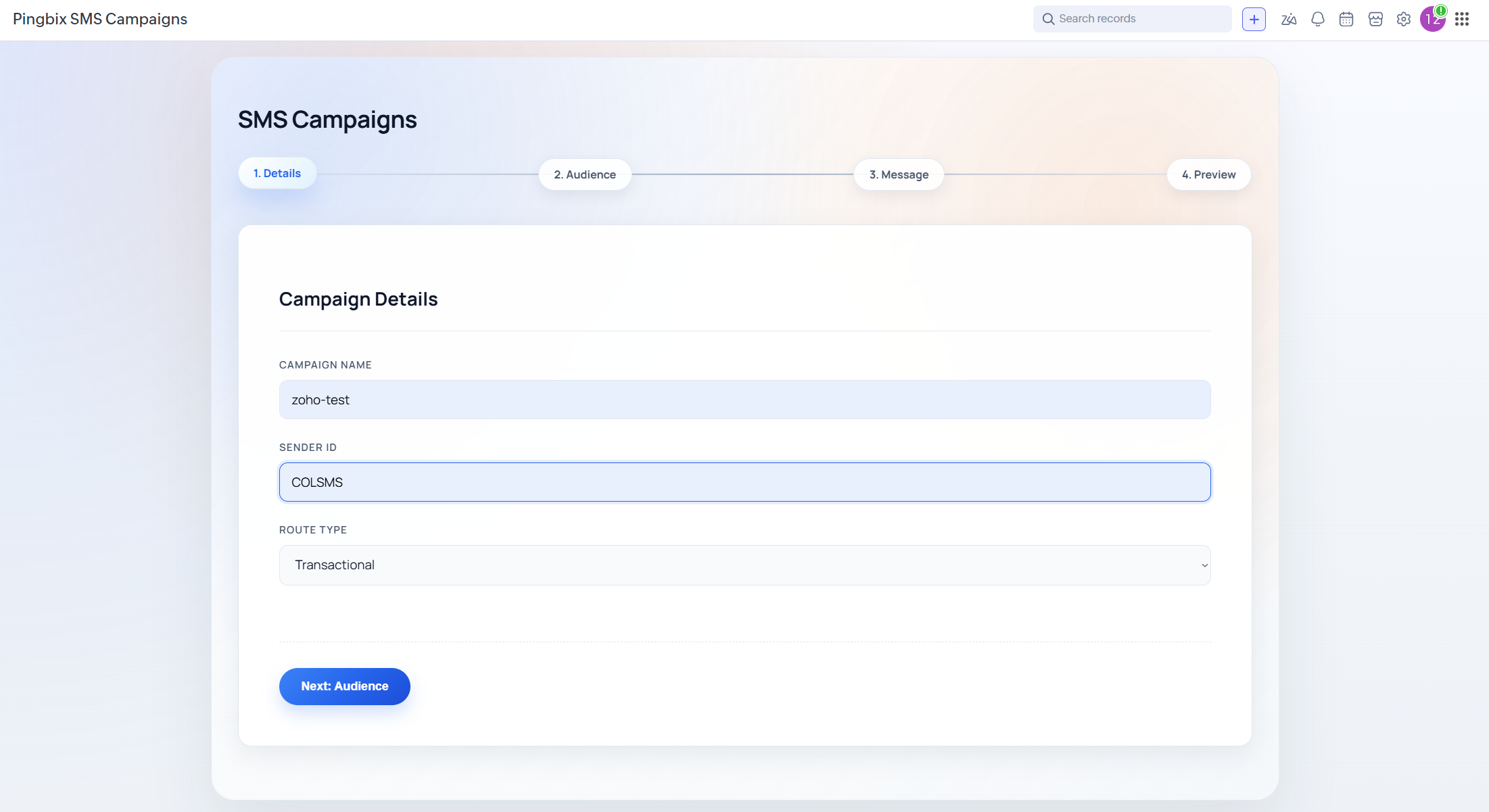
- Select route type such as Transactional, Promotional, or OTP.
- Choose a template if needed and fill template parameters.
- Send.
5) SMS campaigns (web tab)
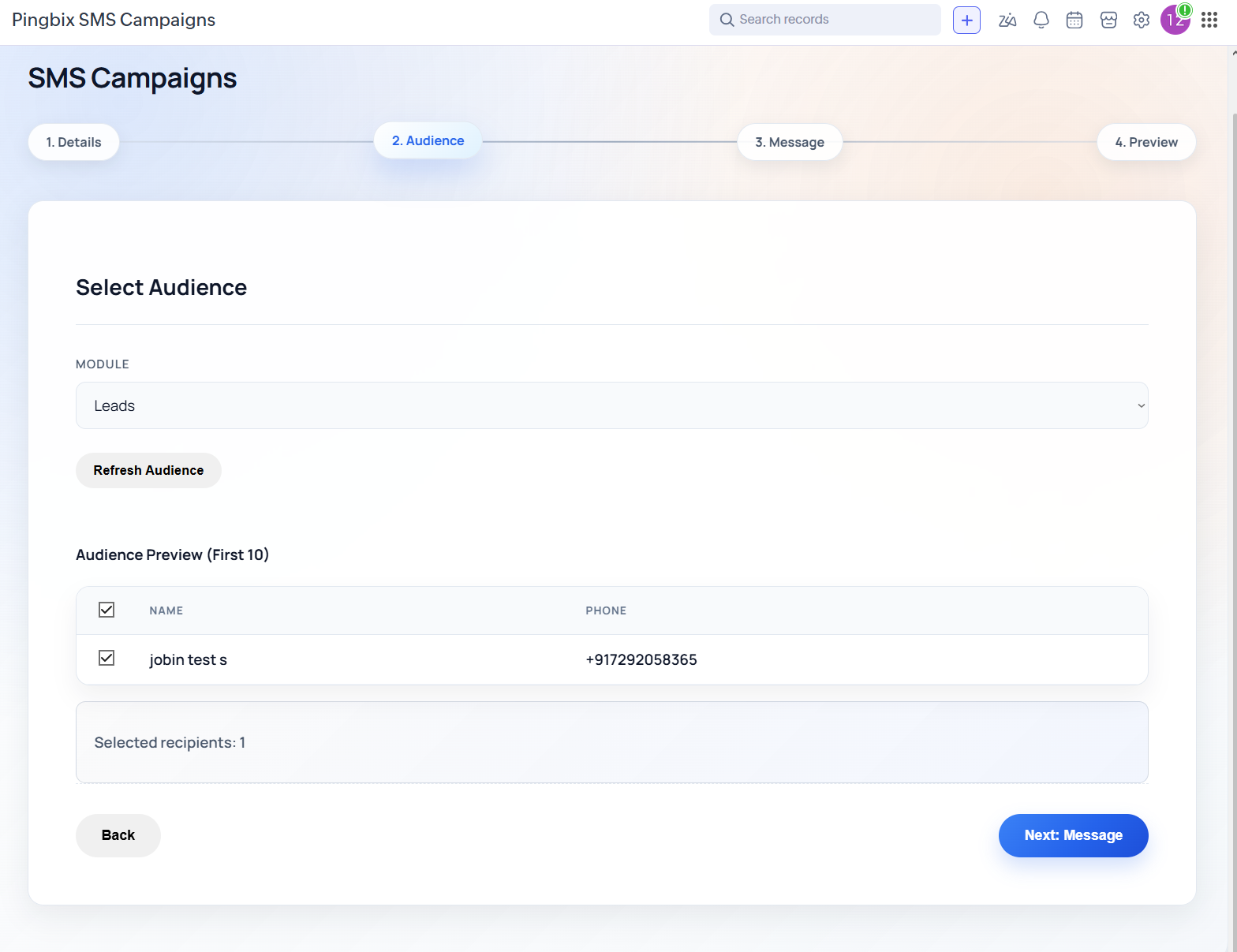
Open Pingbix SMS Campaigns and follow the wizard.
6) RCS 1-to-1 (templates only)
RCS sending enforces templates for compliance. Open the RCS widget on a Lead or Contact record and:
- Select an approved template.
- Map variables using Zoho fields or
STATIC:values. - Send.
7) RCS campaigns (web tab)
Open Pingbix RCS Campaigns, select audience and templates, map variables, preview, then launch.
Need quick answers? Check the FAQ.
API Reference
Table of Contents
- 1. Overview
- 2. Base URL
- 3. Auth (Zoho OAuth)
- 4. Org context (org_id)
- 5. Conventions
- 6. Health
- 7. Org config (Setup)
- 8. Zoho helper APIs (views/fields/records)
- 9. WhatsApp APIs
- 10. Campaign APIs (WhatsApp + RCS)
- 11. SMS APIs
- 12. RCS APIs
1) Overview
This page documents the backend API that powers the extension UI inside Zoho CRM (Setup, campaigns, and widgets).
2) Base URL
All endpoints are served from the backend hosting this extension.
https://your-backend-domain.com# Set a shell variable (optional):
BASE_URL="https://your-backend-domain.com"3) Auth (Zoho OAuth)
Zoho OAuth authorization is required for endpoints that read/write Zoho CRM data (audience fetch, field mapping, updating records, etc.).
GET /auth/init?org_id=<ORG_ID>starts OAuth (browser redirect to Zoho consent).GET /auth/callbackis the redirect URI Zoho calls after consent.
https://<your-backend-domain>/auth/callback
# Start OAuth (open in a browser, not curl):
https://<BASE_URL>/auth/init?org_id=<ORG_ID>
4) Org context (org_id)
This backend supports multiple Zoho organizations. Many endpoints require org_id so the backend uses the correct org-specific authorization and configuration.
- Pass
org_idas a query parameter (GET endpoints) or in JSON body (POST endpoints). - In the extension UI, the org id is resolved automatically from Zoho context.
# Example:
curl -sS "$BASE_URL/health?org_id=<ORG_ID>"
5) Conventions
- Most POST endpoints use JSON: set
Content-Type: application/json. - Common success pattern:
{ "success": true, "data": ... }. - Common error pattern:
{ "error_code": "...", "message": "..." }or{ "error": "..." }.
# Example JSON POST:
curl -sS -X POST "$BASE_URL/org/config" \
  -H "Content-Type: application/json" \
  -d '{ "org_id": "<ORG_ID>", "apiKey": "<PINGBIX_API_KEY>", "wabaNumber": "+91XXXXXXXXXX" }'
6) Health
GET /- simple "running" responseGET /health?org_id=<ORG_ID>- readiness checks
curl -sS "$BASE_URL/"curl -sS "$BASE_URL/health?org_id=<ORG_ID>"7) Org config (Setup)
Used by the Setup tab to save Pingbix credentials per Zoho organization.
GET /org/config?org_id=<ORG_ID>POST /org/configPOST /org/disconnect
curl -sS "$BASE_URL/org/config?org_id=<ORG_ID>"curl -sS -X POST "$BASE_URL/org/config" \
-H "Content-Type: application/json" \
-d '{
"org_id": "<ORG_ID>",
"apiKey": "<PINGBIX_API_KEY>",
"wabaNumber": "+91XXXXXXXXXX",
"apiUrl": "https://api.pingbix.ai/v1/whatsapp",
"campaignName": "api_campaign"
}'curl -sS -X POST "$BASE_URL/org/disconnect" \
-H "Content-Type: application/json" \
-d '{ "org_id": "<ORG_ID>" }'8) Zoho helper APIs (views/fields/records)
Used by the campaigns UI for loading modules/views, listing fields for mapping, and previewing records.
GET /auth/views?org_id=<ORG_ID>&module=<MODULE>GET /auth/fields?org_id=<ORG_ID>&module=<MODULE>GET /auth/records?org_id=<ORG_ID>&module=<MODULE>&viewId=<VIEW_ID>(preview)POST /auth/recordswith COQL
curl -sS "$BASE_URL/auth/views?org_id=<ORG_ID>&module=Leads"curl -sS "$BASE_URL/auth/fields?org_id=<ORG_ID>&module=Leads"curl -sS "$BASE_URL/auth/records?org_id=<ORG_ID>&module=Leads&viewId=all_records"curl -sS -X POST "$BASE_URL/auth/records" \
-H "Content-Type: application/json" \
-d '{
"org_id": "<ORG_ID>",
"coql": "SELECT Full_Name, Phone, Mobile FROM Leads LIMIT 50"
}'9) WhatsApp APIs
Webhook (Meta verification + inbound)
GET /whatsapp/webhook- Meta verificationPOST /whatsapp/webhook- inbound events
# Meta verification (example request shape)
GET $BASE_URL/whatsapp/webhook?hub.mode=subscribe&hub.verify_token=<TOKEN>&hub.challenge=<CHALLENGE>
# Pingbix-style inbound example (may be rejected if your webhook requires verification):
curl -sS -X POST "$BASE_URL/whatsapp/webhook" \
-H "Content-Type: application/json" \
-d '{
"channel": "whatsapp",
"event": "message_received",
"from": "91XXXXXXXXXX",
"to": "91YYYYYYYYYY",
"timestamp": 1710000000
}'Send free-form text
POST /whatsapp/send
Body fields:
org_id(required)to(required) - phone numbermessage(required) - text to send
curl -sS -X POST "$BASE_URL/whatsapp/send" \
  -H "Content-Type: application/json" \
  -d '{
    "org_id": "<ORG_ID>",
    "to": "+91XXXXXXXXXX",
    "message": "Hello from Zoho CRM"
  }'
Send template message
POST /whatsapp/send-template
Body fields (common):
org_id(required)to(required)templateName(required)templateParams(optional) - array of values for the template body placeholdersoptIn(required for most templates) - boolean indicating recipient opt-in
curl -sS -X POST "$BASE_URL/whatsapp/send-template" \
  -H "Content-Type: application/json" \
  -d '{
    "org_id": "<ORG_ID>",
    "to": "+91XXXXXXXXXX",
    "templateName": "order_update",
    "language": "en",
    "templateParams": ["John", "12345"],
    "optIn": true
  }'
10) Campaign APIs (WhatsApp + RCS)
POST /campaigns/send- execute WhatsApp or RCS campaignGET /campaigns/templates?org_id=<ORG_ID>- WhatsApp templates stored in ZohoPOST /campaigns/templates/sync- sync WhatsApp templates from PingbixPOST /campaigns/templates/create- create WhatsApp template (advanced)GET /campaigns/rcs/templates- list approved RCS templates
curl -sS "$BASE_URL/campaigns/templates?org_id=<ORG_ID>"curl -sS "$BASE_URL/campaigns/rcs/templates"WhatsApp campaign (template)
Audience selection: provide viewId, coqlQuery, or selectedRecipients.
Mapping rules: WhatsApp templates use numeric parameters. Use:
"1": "First_Name"to map parameter 1 to a Zoho field API name"2": "STATIC:123"to pass a constant value
curl -sS -X POST "$BASE_URL/campaigns/send" \
  -H "Content-Type: application/json" \
  -d '{
    "org_id": "<ORG_ID>",
    "channel": "whatsapp",
    "name": "Promo Campaign",
    "module": "Leads",
    "viewId": "all_records",
    "templateName": "order_update",
    "language": "en",
    "mapping": {
      "1": "First_Name",
      "2": "STATIC:12345"
    }
  }'
RCS campaign (template-only)
Mapping rules: RCS templates use named variables. Use:
"customer_name": "First_Name"to map a variable to a Zoho field"year": "STATIC:2026"to pass a constant value
curl -sS -X POST "$BASE_URL/campaigns/send" \
  -H "Content-Type: application/json" \
  -d '{
    "org_id": "<ORG_ID>",
    "channel": "rcs",
    "name": "RCS Campaign",
    "module": "Leads",
    "selectedRecipients": ["<ZOHO_RECORD_ID_1>", "<ZOHO_RECORD_ID_2>"],
    "template_name": "christmas_wishes",
    "bot_id": "PNGBXC",
    "template_type": "standalone",
    "variables": {
      "customer_name": "First_Name",
      "year": "STATIC:2026"
    }
  }'
WhatsApp template sync
curl -sS -X POST "$BASE_URL/campaigns/templates/sync" \
  -H "Content-Type: application/json" \
  -d '{
    "org_id": "<ORG_ID>",
    "apiKey": "<PINGBIX_API_KEY>",
    "apiUrl": "https://api.pingbix.ai/v1/whatsapp"
  }'
Create WhatsApp template (advanced)
This forwards a template creation request to the provider. Exact payload requirements depend on your provider/template policy.
curl -sS -X POST "$BASE_URL/campaigns/templates/create" \
  -H "Content-Type: application/json" \
  -d '{
    "org_id": "<ORG_ID>",
    "name": "order_update",
    "category": "MARKETING",
    "language": "en",
    "wabaId": "<WABA_ID>",
    "components": [
      { "type": "BODY", "text": "Hi 1, your order 2 is confirmed." }
    ]
  }'
11) SMS APIs
POST /sms/sendPOST /sms/otpPOST /sms/unicodePOST /sms/flashPOST /sms/templatePOST /sms/template-textPOST /sms/bulkGET /sms/templatesPOST /sms/templatesPOST /sms/campaigns/send
curl -sS -X POST "$BASE_URL/sms/send" \
  -H "Content-Type: application/json" \
  -d '{
    "to": "91XXXXXXXXXX",
    "text": "Hello from Pingbix SMS",
    "type": "TRANS",
    "sender": "SENDERID"
  }'
curl -sS -X POST "$BASE_URL/sms/template" \
-H "Content-Type: application/json" \
-d '{
"to": "91XXXXXXXXXX",
"templateId": "1707170962436477834",
"custom": ["123456"],
"type": "OTP",
"sender": "SENDERID"
}'curl -sS "$BASE_URL/sms/templates"curl -sS -X POST "$BASE_URL/sms/templates" \
-H "Content-Type: application/json" \
-d '{
"templates": [
{
"name": "OTP",
"templateId": "1707170962436477834",
"senderId": "SENDERID",
"type": "OTP",
"paramCount": 1,
"content": "Your code is ",
"status": "Approved"
}
]
}'# SMS campaign example (audience + message/template)
curl -sS -X POST "$BASE_URL/sms/campaigns/send" \
-H "Content-Type: application/json" \
-d '{
"module": "Leads",
"viewId": "all_records",
"templateName": "OTP",
"mapping": { "1": "STATIC:123456" },
"type": "OTP",
"sender": "SENDERID"
}'12) RCS APIs
GET /rcs- webhook health checkPOST /rcs- provider callbacks / delivery statusGET /rcs/templates- local template catalogPOST /rcs/templates- save local template catalog
curl -sS "$BASE_URL/rcs"curl -sS "$BASE_URL/rcs/templates"# Provider callback example (payload varies by provider)
curl -sS -X POST "$BASE_URL/rcs" \
-H "Content-Type: application/json" \
-d '{
"messageId": "abc123",
"status": "DELIVERED",
"to": "91XXXXXXXXXX"
}'curl -sS -X POST "$BASE_URL/rcs/templates" \
-H "Content-Type: application/json" \
-d '{
"templates": [
{
"template_name": "christmas_wishes",
"bot_id": "PNGBXC",
"template_type": "standalone",
"message_type": "standalone",
"route_type": "TRANS",
"status": "Approved",
"variable_order": ["customer_name","year"]
}
]
}'FAQ
Table of Contents
1) Installation
Do I need to configure anything in Zoho CRM after install?
Yes. Your CRM admin must create the required custom fields for phone and opt-in in Leads and Contacts, and set up the Pingbix Templates custom module for WhatsApp templates.
Which Zoho modules are supported?
Leads and Contacts are supported out of the box.
2) Setup (connect)
Why does Setup show "not connected"?
Usually because Pingbix credentials were not saved yet or Zoho authorization has not completed. Open the Setup tab and complete the connect or authorize flow.
What if the authorization popup is blocked?
Allow popups for Zoho CRM in your browser and retry authorization from Setup.
3) Templates
Why can't I see WhatsApp templates in the campaign page?
Templates appear after you run Template Sync from within Zoho, and they are approved on your Pingbix or WhatsApp side. Then reload the campaign page.
Can I send WhatsApp without templates?
Yes. The 1-to-1 WhatsApp widget supports free-form text messages. Templates are required for template campaigns and template messaging.
Does RCS allow custom messages?
No. RCS sending in this extension is template-only for compliance.
4) Opt-in and compliance
Why is a recipient skipped in a campaign?
The most common reasons are:
- Opt-in checkbox is not enabled for that channel.
- Phone number is missing or invalid for the selected channel.
Why is the send button disabled on a record?
Usually because the record has no valid phone number or is not opted-in.
5) Campaign results
What do Sent / Failed / Skipped mean?
- Sent: request was submitted successfully.
- Failed: request could not be sent, for example provider error or invalid payload.
- Skipped: recipient excluded, usually opt-out or missing phone.
6) Security
Is it safe to share screenshots of Setup?
Be careful. Setup may contain credentials. Do not share screenshots publicly if they expose API keys or private configuration.
Where can developers find API details?
See API Reference.
Still stuck? Use the troubleshooting guide.
Help & Troubleshooting
Table of Contents
1) Setup shows "not connected"
If the extension looks locked or campaigns cannot be launched, start with the Setup tab.
- Open Pingbix Setup.
- Save the Pingbix API key and WhatsApp sender or WABA number.
- Run the connect or authorize step for Zoho permission approval.
2) Authorization popup is blocked
- Allow popups for Zoho CRM in your browser.
- Retry the connect or authorize action from Setup.
- If you use strict browser privacy plugins, temporarily disable them for Zoho.
3) Templates are not visible
If WhatsApp templates do not appear in the campaign page or template dropdown:
- Confirm templates are approved on the provider side.
- Run Template Sync and wait for confirmation.
- Reload the campaign page.
4) Send button disabled / recipients skipped
Most "can't send" issues are caused by opt-in or missing phone fields.
- No phone: ensure the record has a valid phone number in the expected field.
- Not opted-in: enable the channel opt-in checkbox on the record.
- Template mapping: make sure every required variable or parameter is mapped, or use STATIC values.
5) Campaign failures
If a campaign shows failures:
- Check that the selected template is approved and correct for the channel.
- Confirm variable mapping is complete, or use STATIC values.
- Try a smaller audience to validate the setup, then scale up.
6) Website page not found (404)
If you see "File not found" when opening a docs link, try the ".html" version of the page:
/docs/zoho/help.htmlinstead of/docs/zoho/help/docs/zoho/faq.htmlinstead of/docs/zoho/faq
7) Support
If you need help from the team, contact support and include:
- Which Zoho module (Leads or Contacts) and which channel (WhatsApp, SMS, or RCS)
- What you clicked and what happened
- Screenshots with credentials hidden